Help & FAQ
How to run a drainage study
Click the point where the water goes. Drainage Study traces the watershed that drains to it, pulls rainfall, soils, land cover and floodplain data, and computes pre- and post-development peak flows. From there you can size a detention pond and download a report.
Every screenshot below is from a real run of the app. The first example is an 11-acre watershed in Fort Worth, at 32.7455, −97.3155.
Your first study, in three clicks
- Pick what the point is, then press Study point.
In the toolbar, use the dropdown next to 📍 Study point
to say what you are studying: Parcel outfall,
Culvert / crossing or Road low point.
Press 📍 Study point. The cursor turns into a crosshair.
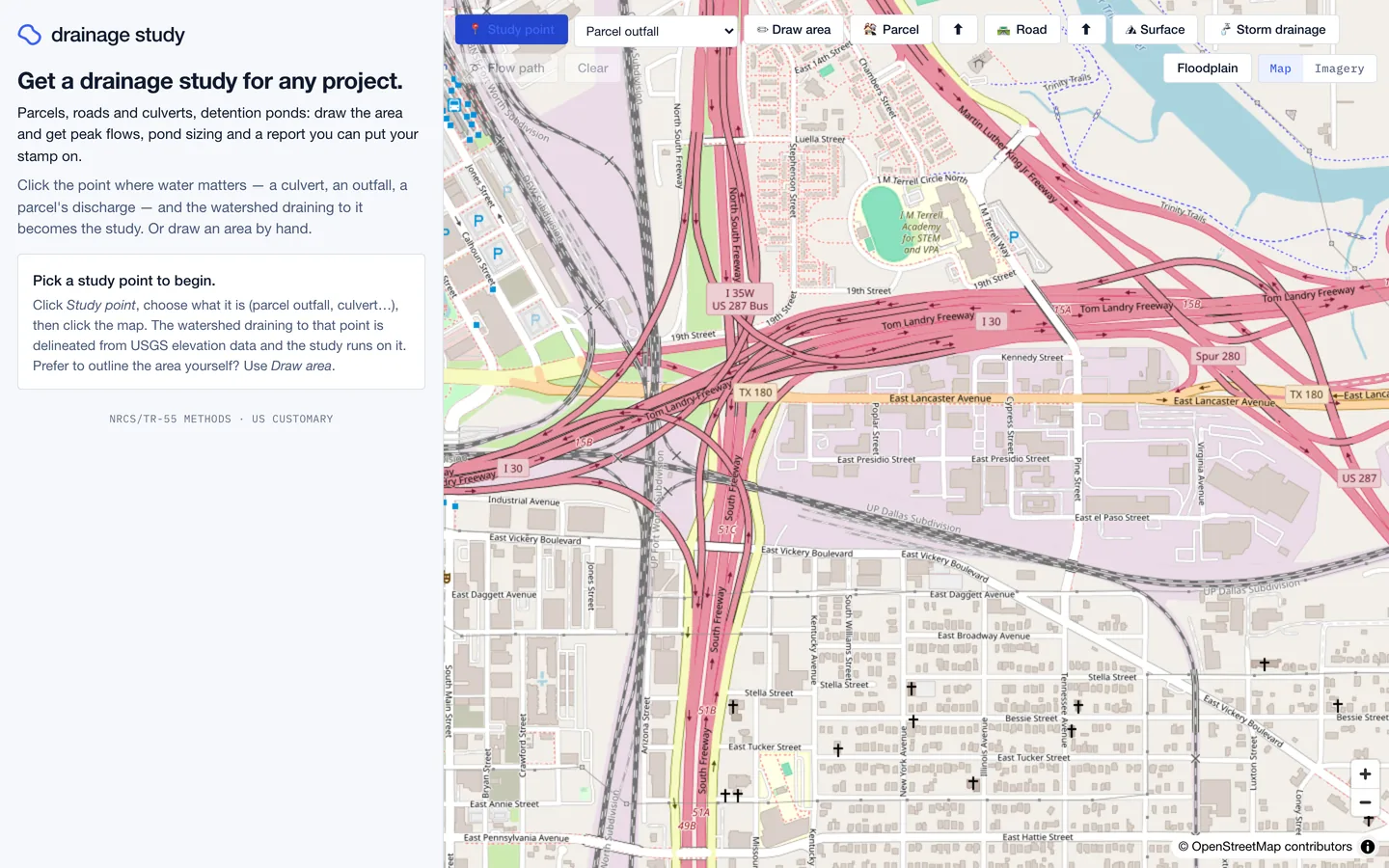
Zoom in until you can see the exact spot: the outfall pipe, the culvert, or the low point of the road. - Click the map where the water leaves.
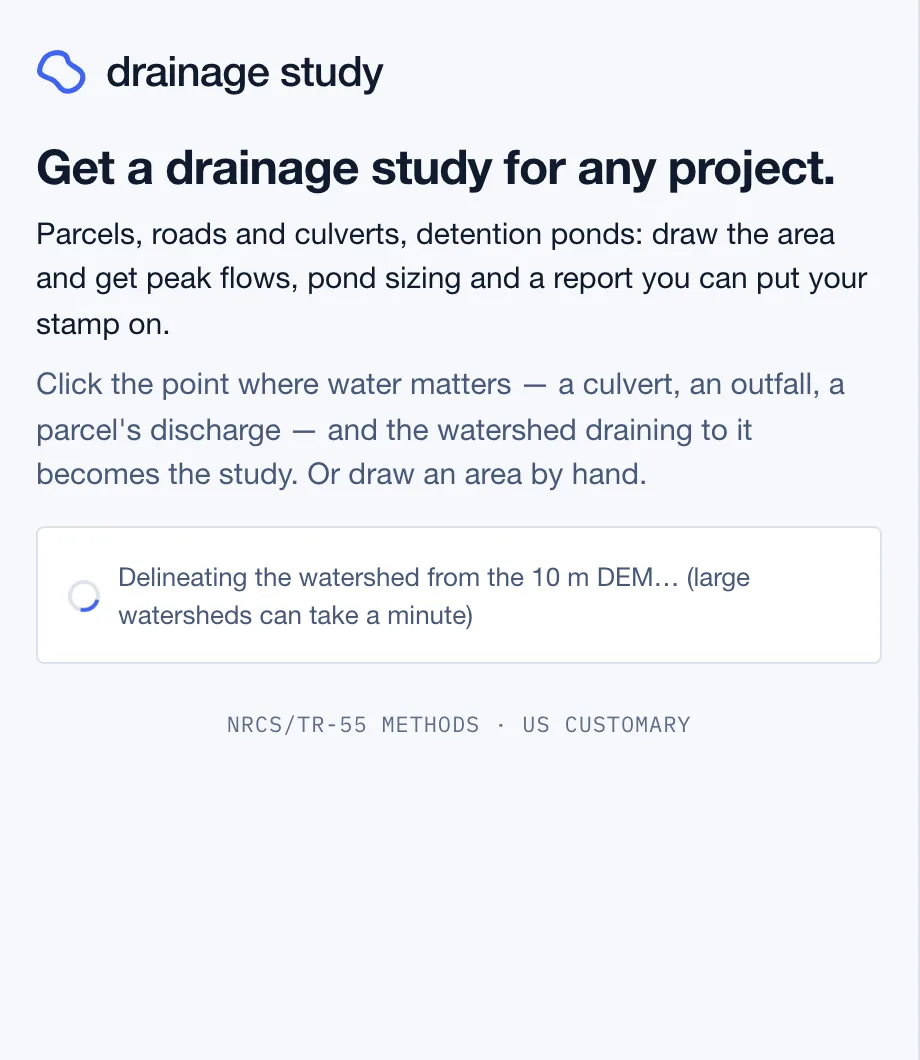
The app traces the watershed draining to that point from USGS elevation
data (1 m lidar where it is available). Small sites take a few seconds.
Large watersheds can take a minute or more.
- Read the result.
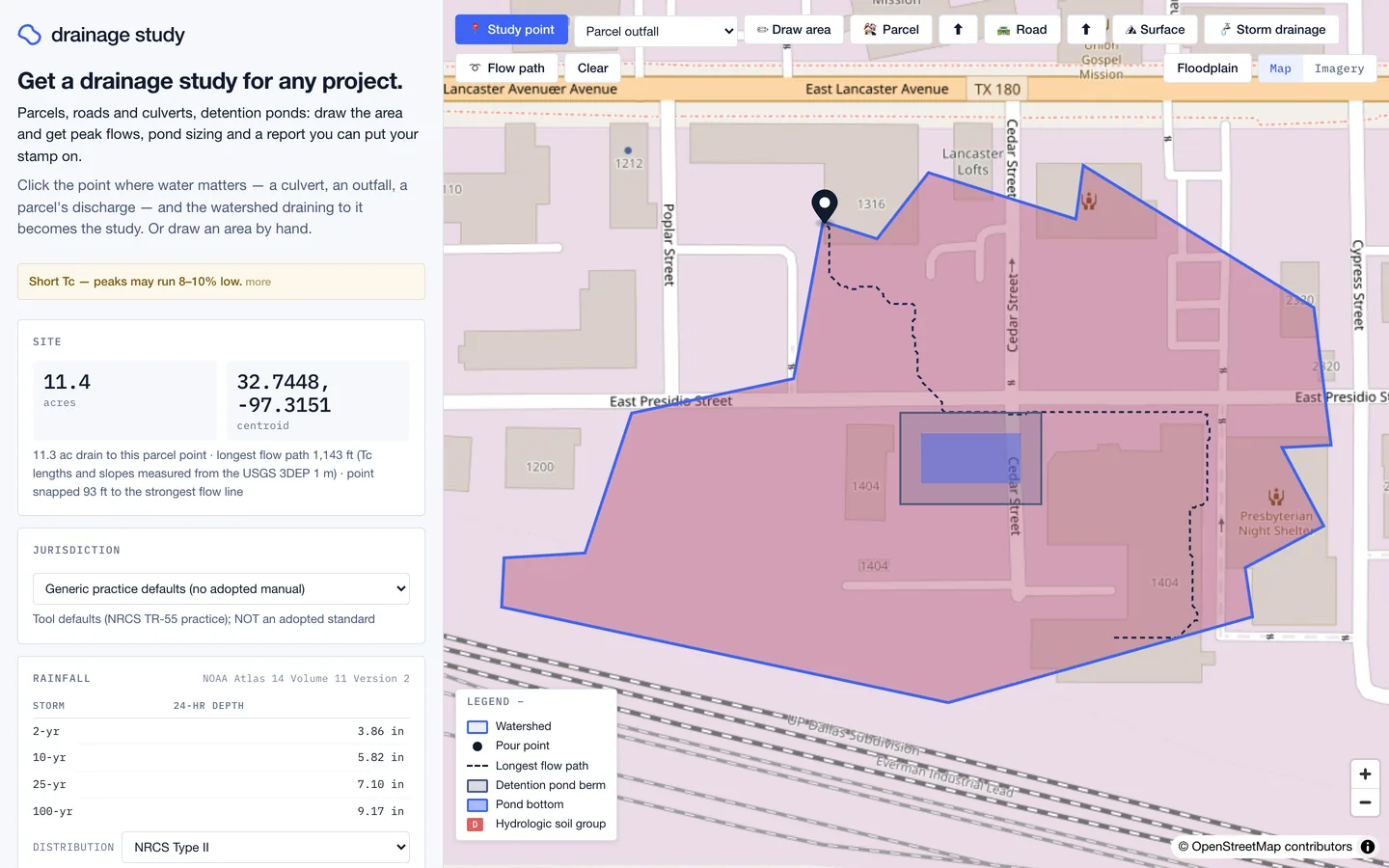
The watershed is drawn in blue, the longest flow path as a dashed line,
and the results fill the panel on the left: area, rainfall, soils,
floodplain, curve numbers, time of concentration, and peak flows for the
2-, 10-, 25- and 100-year storms. A Culvert / crossing
point also gets a Culvert card: a preliminary FHWA HDS-5 size
(barrels and diameter, HW/D, which control governs, outlet velocity)
for the post-development 25-year peak, checked at the 100-year. Change
the inlet type, the tailwater (free outfall, top of pipe, or normal
depth in the receiving channel), the barrel length or the HW/D cap on
the card and the study re-runs.
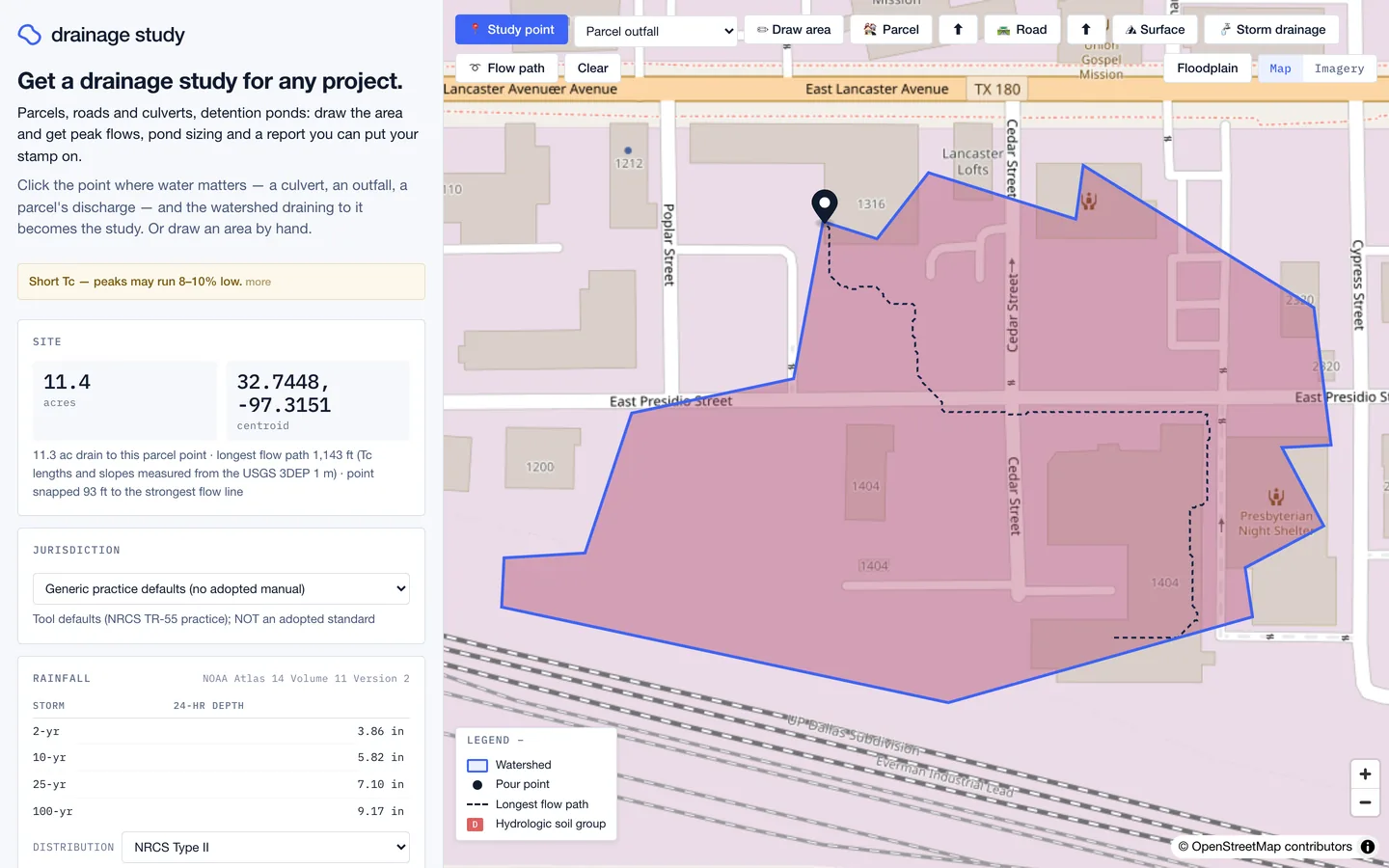
11.3 acres drain to this point. The point snapped 93 ft onto the strongest flow line, and the panel says so.
Which tool do I use?
Everything starts from the toolbar across the top of the map.
Draw area: press ✏ Draw area, click each corner of your boundary, and double-click the last one to close it. The study runs on exactly the area you drew. Use ➰ Flow path afterwards to draw the longest flow path yourself if you want to override the measured one. Clear starts over.
Two map controls on the right: Floodplain shows FEMA flood zones, and Map / Imagery switches the basemap to aerial photos, which helps you find outfalls and culverts.
The results panel, card by card
The panel reads top to bottom in the order an engineer would build the calculation. Everything with a dropdown or input is editable, and the study re-runs when you change it.
Site
Study area in acres, the centroid, and how the watershed was traced: contributing area, longest flow path length, the elevation data used, and how far your point snapped.
Jurisdiction
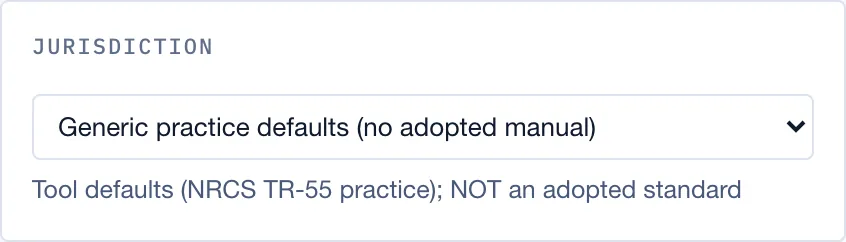
Pick the city or county whose drainage manual governs. Its criteria (required storms, freeboard, side slopes, rainfall distribution) then drive the design, and the study is checked against them. With no jurisdiction picked, generic TR-55 practice defaults are used, and the card says they are not an adopted standard.
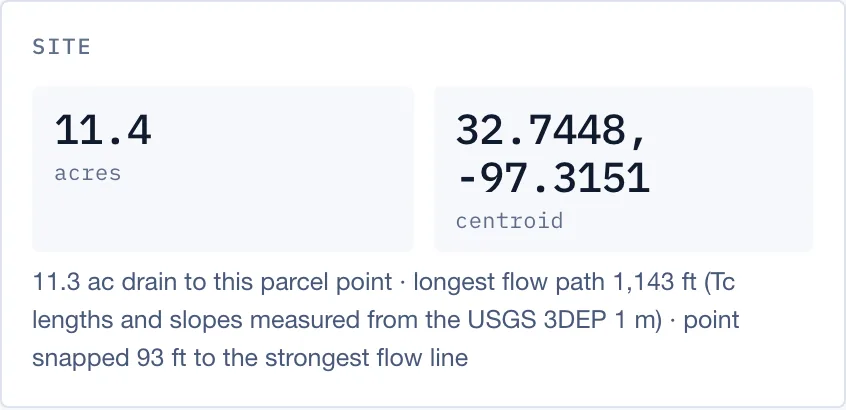
Rainfall
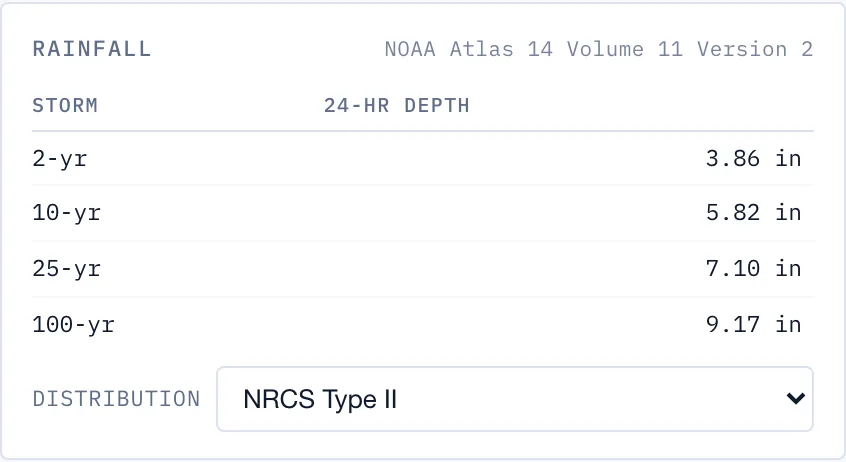
24-hour design depths from NOAA Atlas 14 at your site, for the 2-, 10-, 25- and 100-year storms. The Distribution dropdown sets the storm shape (NRCS Type II by default). If your jurisdiction mandates a distribution, it is applied for you.
Soils / HSG
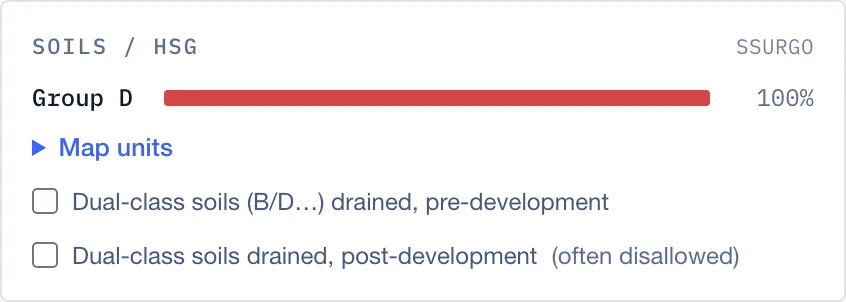
Hydrologic soil groups from NRCS SSURGO, as a share of the watershed. Expand Map units for the individual soils. Dual-class soils (B/D and similar) are treated as undrained unless you tick the boxes. Many manuals don't allow the drained class after development.
Floodplain
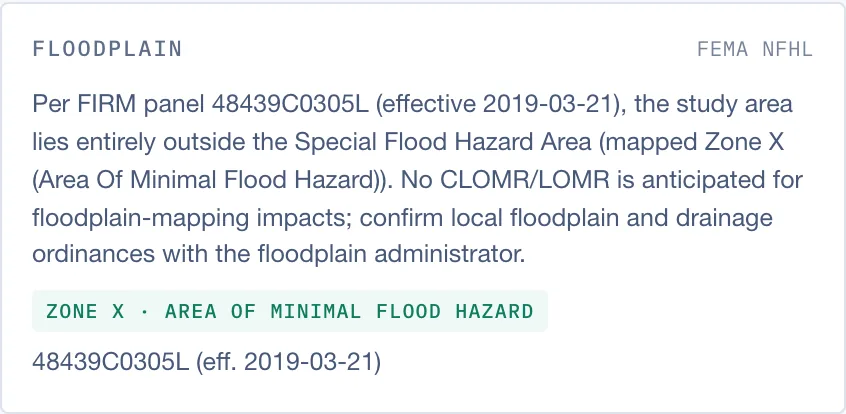
FEMA NFHL flood zones within the study area, with the FIRM panel and its effective date, written as a sentence you can use in the report. If the site touches a Special Flood Hazard Area, the flood layer turns on by itself.
Curve numbers
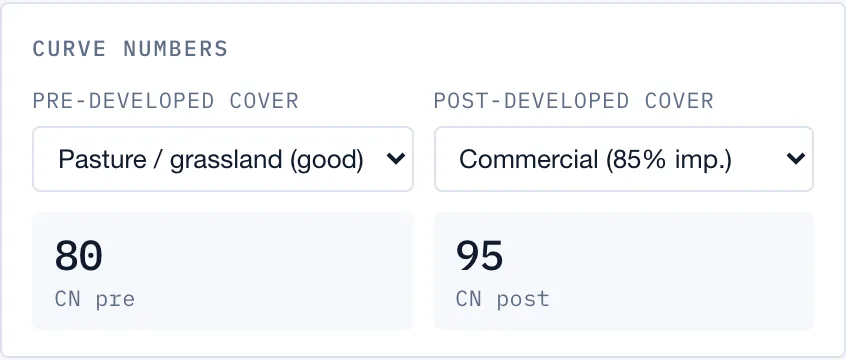
Choose the pre-developed and post-developed cover. The composite curve number is computed against the soil groups above.
Time of concentration
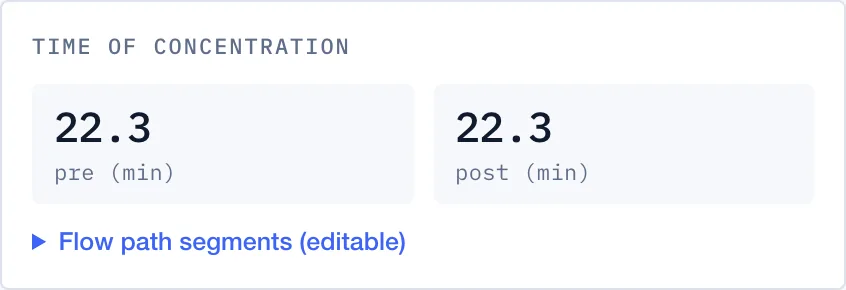
Pre- and post-development Tc in minutes, measured along the longest flow path from the elevation data. Expand Flow path segments to edit sheet, shallow-concentrated and channel segments (lengths, slopes, roughness) if you know the site better than the terrain does.
Drainage impact
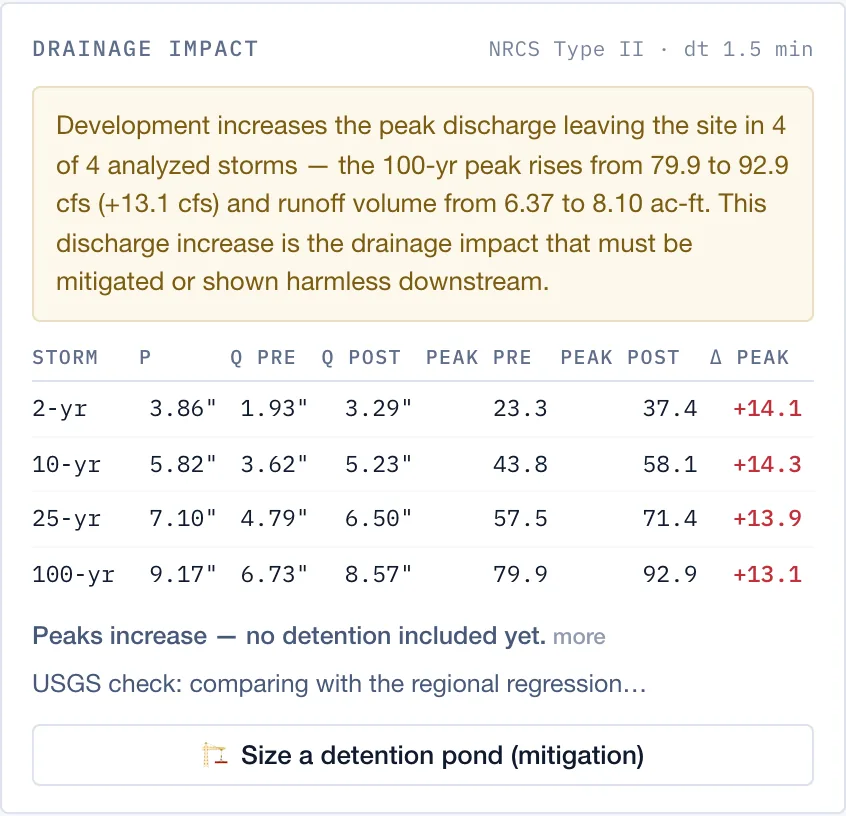
The headline. It opens with a sentence on what development does to peak flow and runoff volume, followed by a table per storm: rainfall P, runoff depth Q, and peak discharge pre and post in cfs. Below that, a USGS regional-regression check compares the pre-development peak with an independent estimate.
Hydrographs
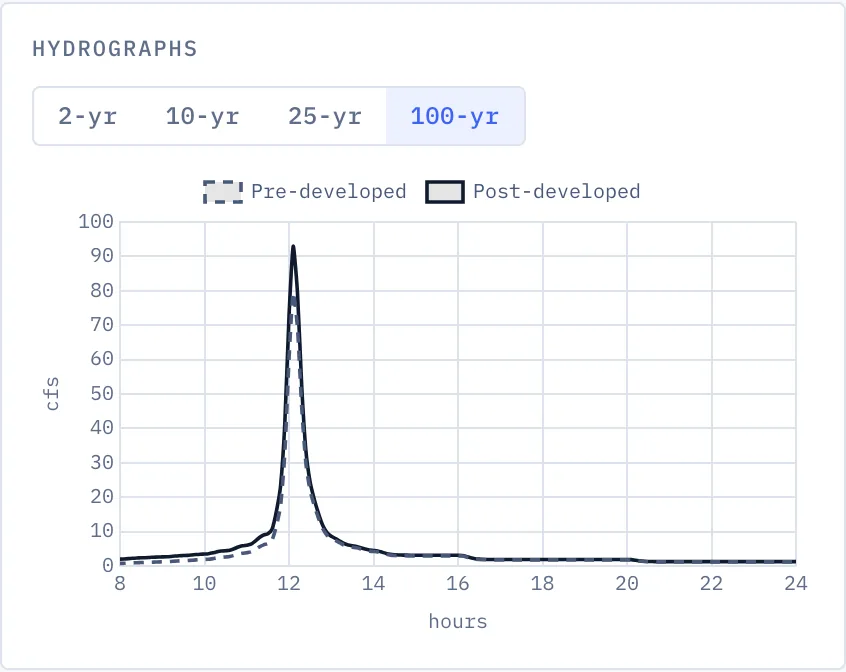
Pre- and post-development hydrographs for each storm. Pick a storm with the chips above the chart. Under it, Assumptions lists the method choices the engine made.
Yellow warnings
Yellow notes at the top of the panel flag something that changes how you should read the numbers. They don't mean the study failed. Click more for the full explanation. Method notes that only need recording, not action, are collected under Assumptions instead.

Criteria findings
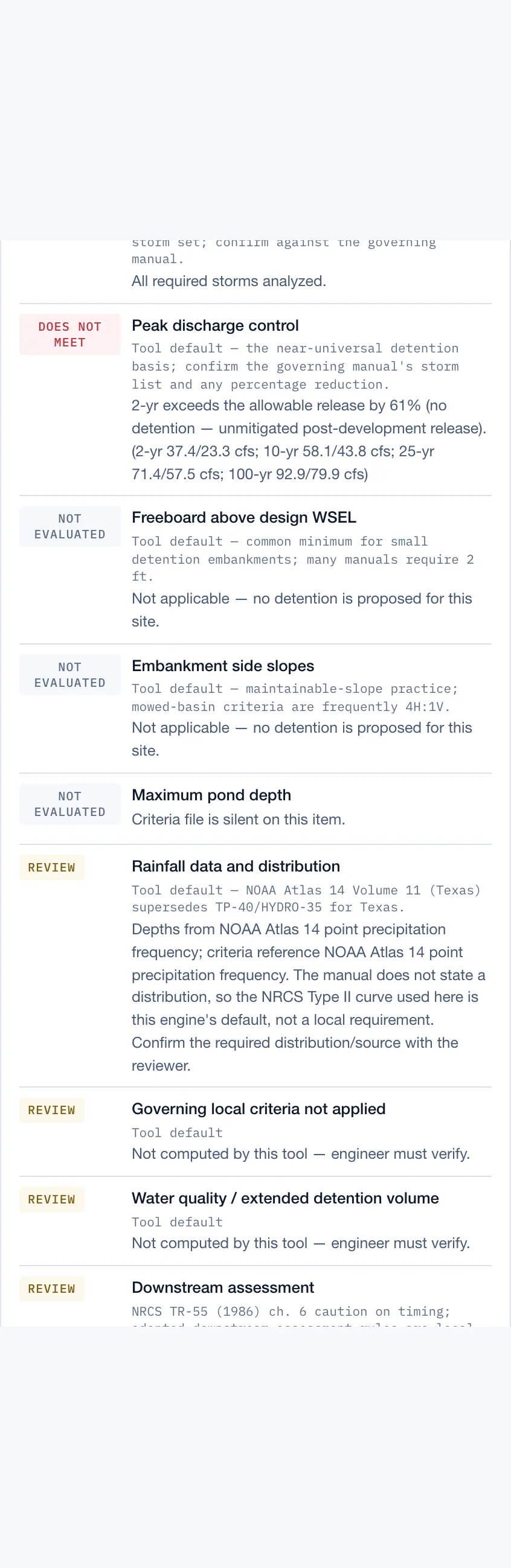
The design checked line by line against the selected jurisdiction's manual. Each item is marked Meets, Does not meet, Not evaluated (doesn't apply yet, e.g. freeboard before there is a pond), or Review (outside what this tool computes, such as water quality, downstream assessment and easements, which the engineer has to cover).
Size a detention pond
When development raises the peak, press 🏗 Size a detention pond (mitigation) under the drainage impact table.

The app sizes a trapezoidal pond and an outlet (low-flow pipe, riser weir and emergency spillway), routes every storm through it, and shows whether each routed peak is back at or below the pre-development rate. The pond's footprint is drawn to scale on the map. Drag it to where it would actually go.
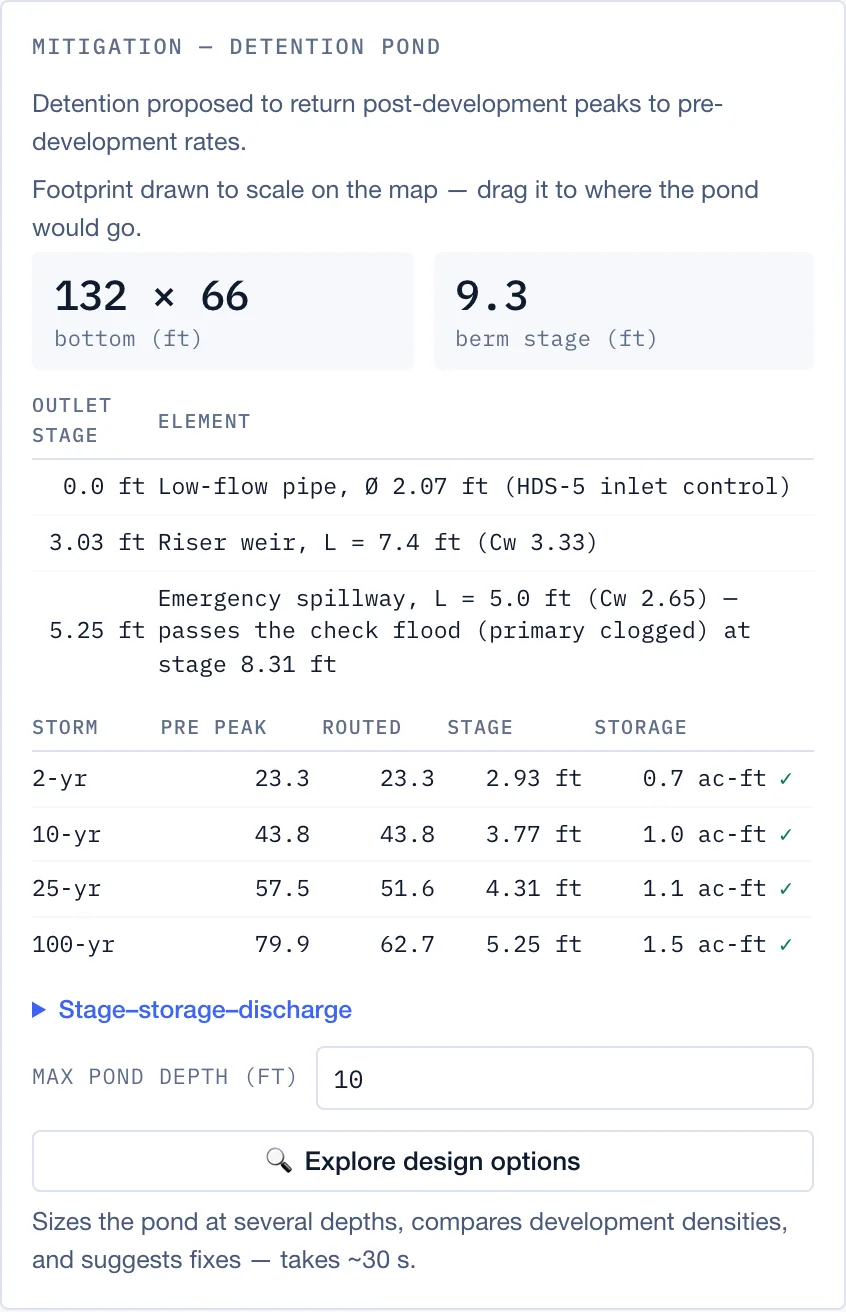
Change Max pond depth to trade depth for land. Expand Stage–storage–discharge for the full rating table.
Explore design options
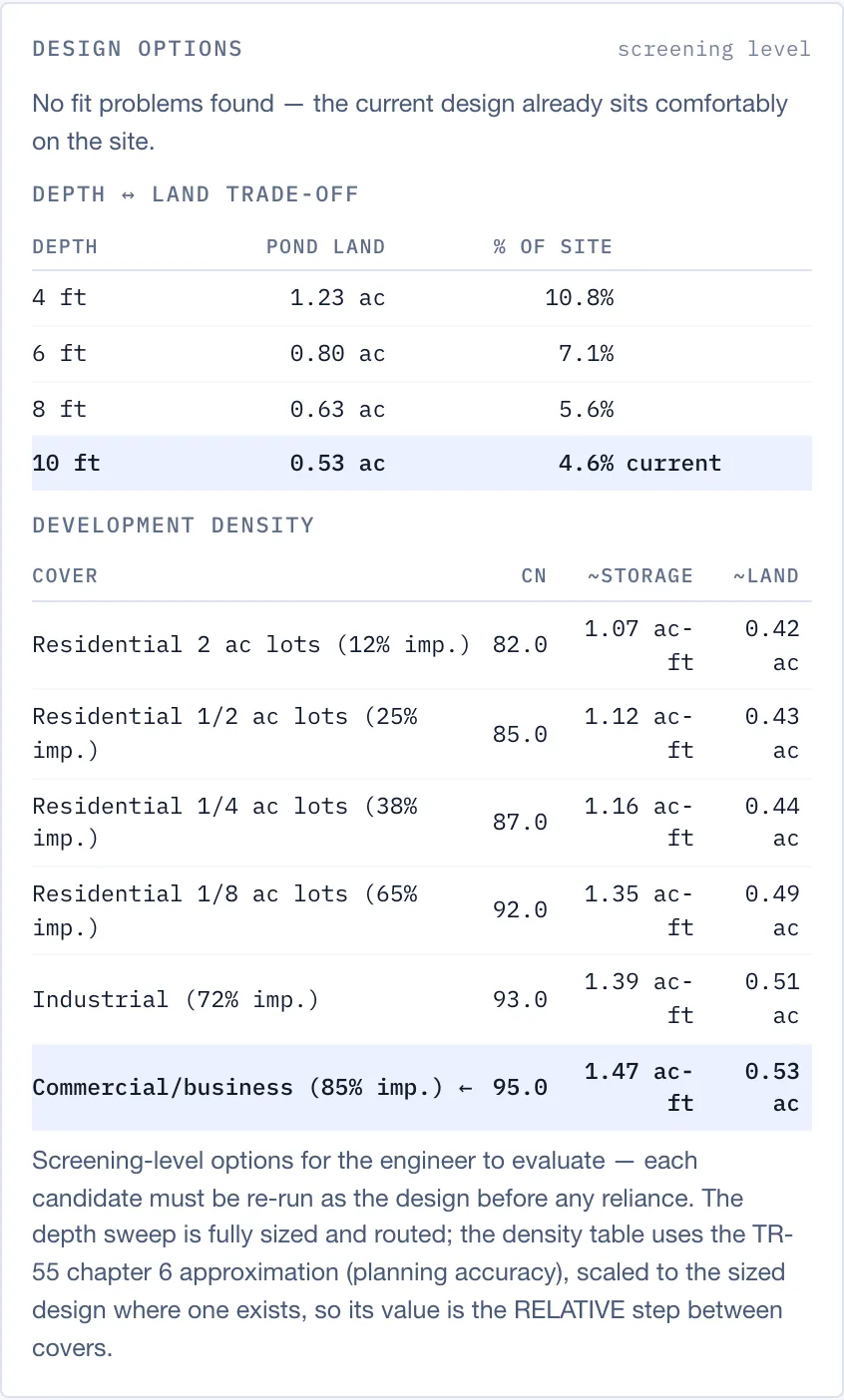
🔍 Explore design options runs the pond at several depths and compares development densities, so you can see the land each choice costs. It takes about 30 seconds. If the pond doesn't fit, it suggests fixes.
The report
📄 Download preliminary drainage study (PDF) at the bottom of the panel builds a worksheet-style report: site data, rainfall, soils, floodplain, curve numbers, Tc, peak flows, pond design and criteria findings, with the equations written out and every data source cited.
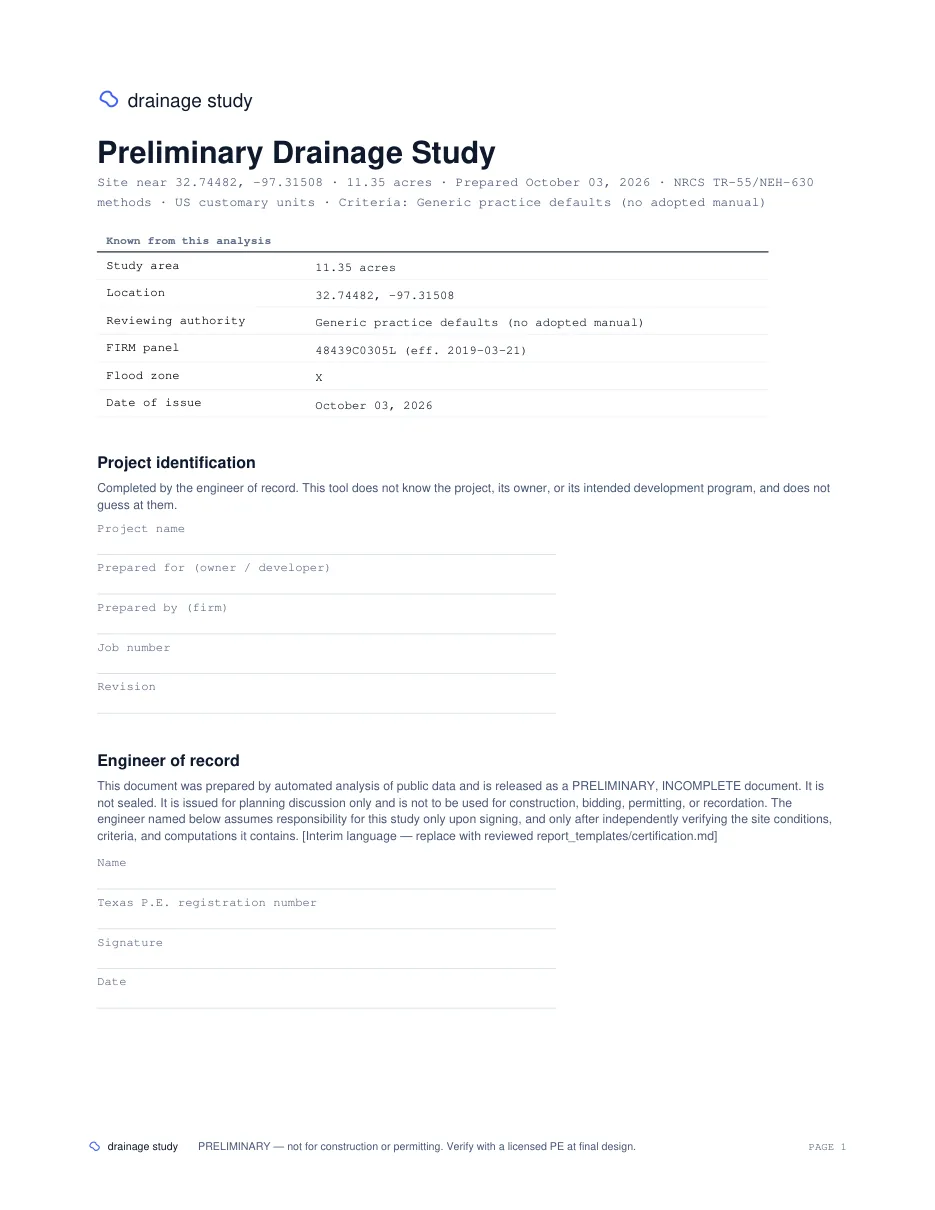
The report is preliminary and unsealed. The project identification and engineer-of-record blocks are left blank for you to fill in. It is a starting point to check, finish and put on your letterhead, not a document to submit as-is.
Reports come with a subscription. Your free study shows every result on the map; downloading it as a report needs a subscription.
Parcel studies
Use this when you have a property to develop and want to know what developing it does downstream.
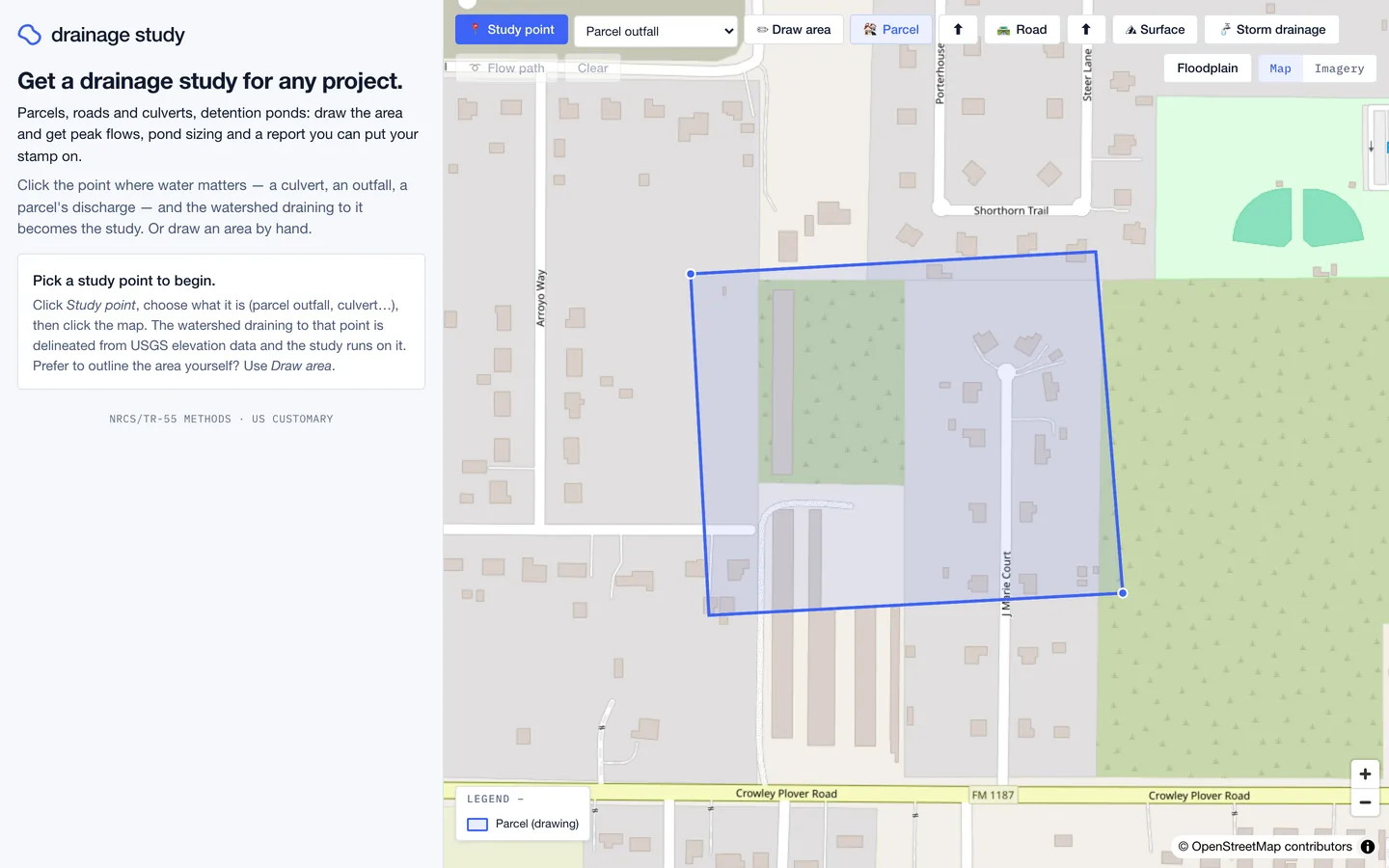
- Draw or upload the parcel. Press 🏘 Parcel
and click the corners, double-clicking the last one. To upload a
boundary instead, use the ⬆ button next to it
(KML, KMZ or GeoJSON polygon).
- The app finds the outfall. It takes the lowest point on the
parcel boundary as the outfall and traces the watershed draining to
it. Post-development cover is applied to the parcel's share only; the
rest of the watershed stays as it is.
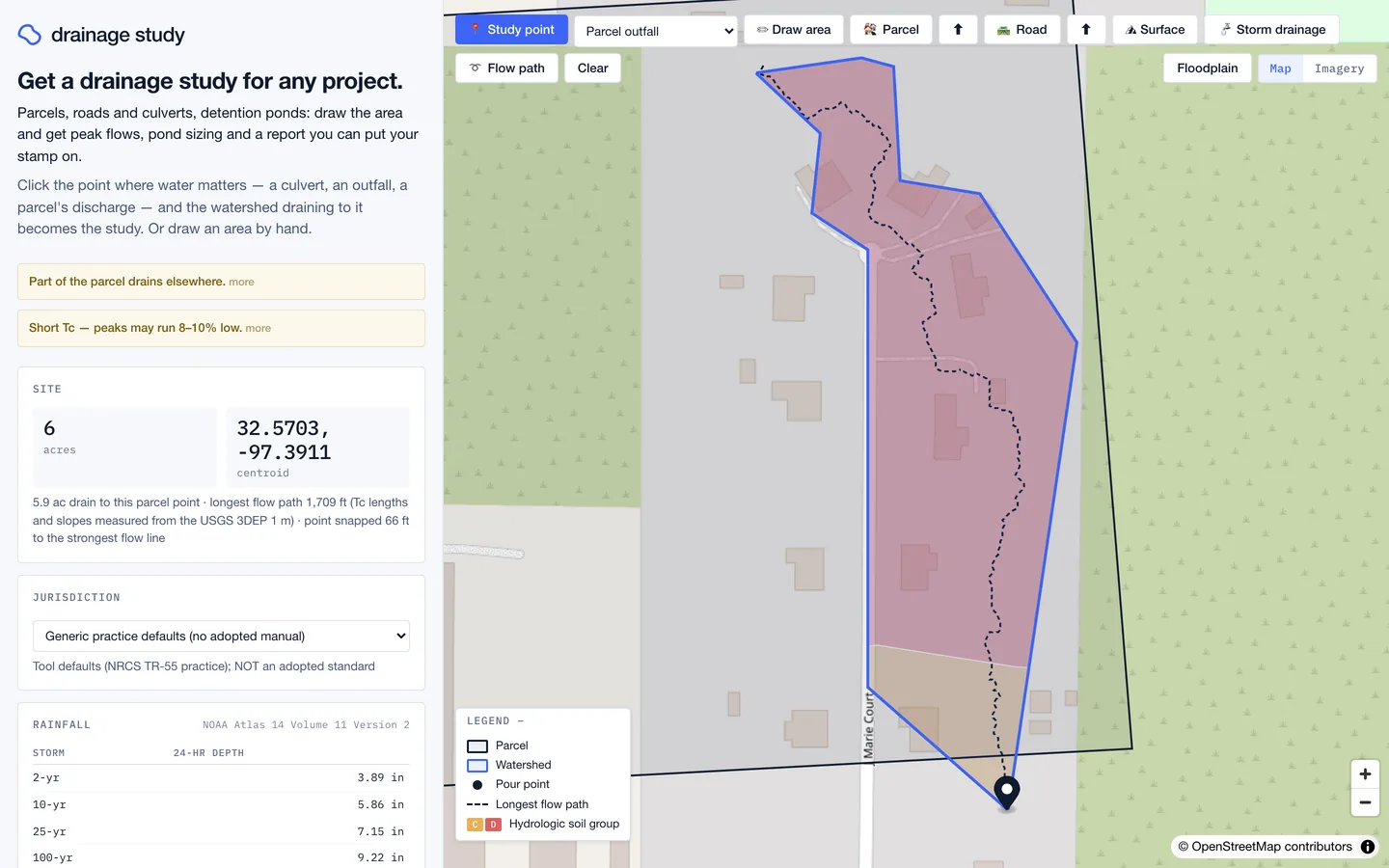
The parcel is outlined in black. Only part of it drains to its lowest point, which the warning at the top says. - Try densities. Type a lot count in Lots wanted
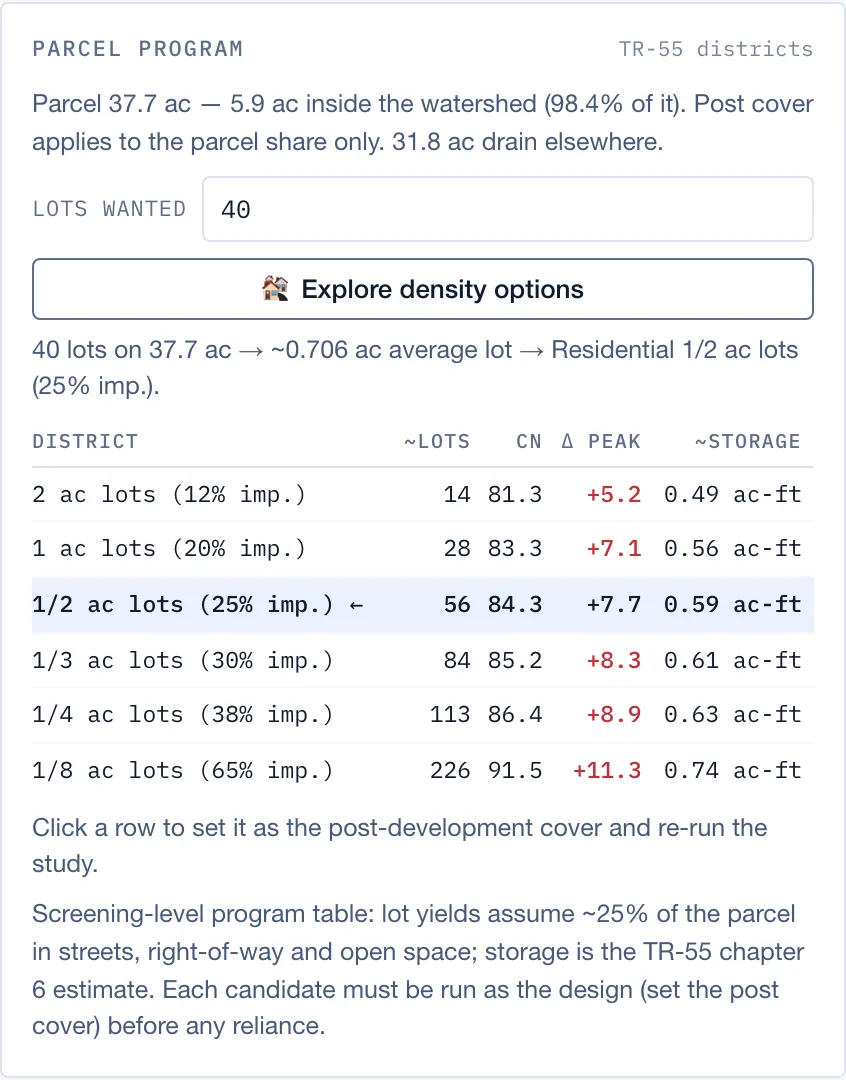
and press 🏘 Explore density options. The table
compares lot sizes by curve number, peak increase and storage. Click a
row to make it the post-development cover and re-run the study.
Private storm drainage (pipes the terrain can't see)
Elevation data shows where water flows over the ground, but not through pipes. If an upstream storm sewer brings water in, or a private system carries part of the site away to another outfall, add those areas here.
- Run the study first. Areas are measured against the watershed, so the button asks for one.
- Upload the drainage area map. Press
🚰 Storm drainage and pick a shapefile
(
.zip), GeoPackage, DXF, KML/KMZ or GeoJSON. The coordinate system is read from the file; it is shown in the card header.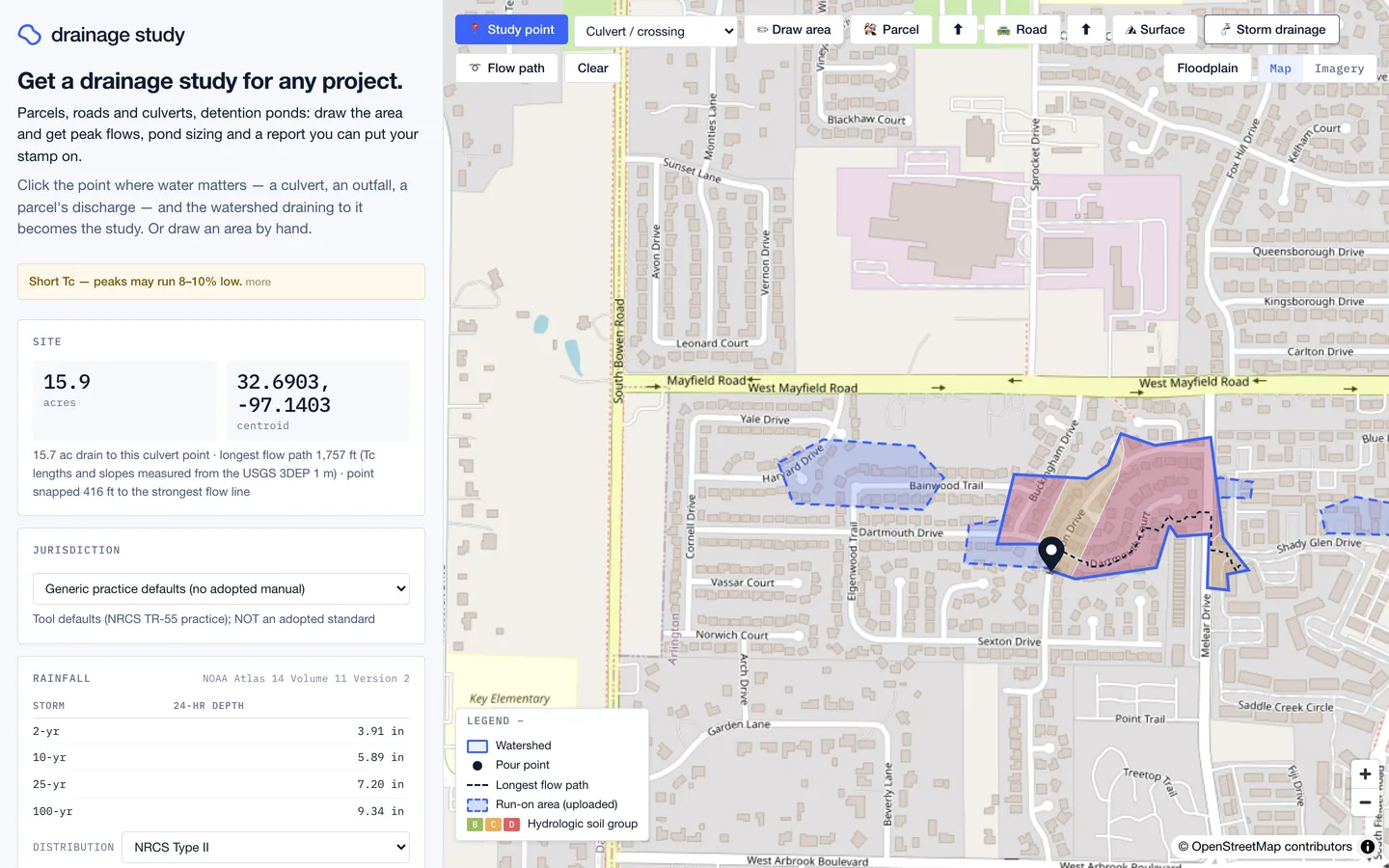
Uploaded areas are drawn dashed. Each one is run as its own hydrograph and added at the study point. - Set every area, one by one. Each area arrives as
Run-on · Existing · Commercial · 10 min. Those are placeholders,
not readings of your file. For each area, set:
- Run-on (piped in, adds area) or Diverted (piped away, removes area)
- Existing or Proposed
- its cover, and its travel time in minutes from the storm sewer design
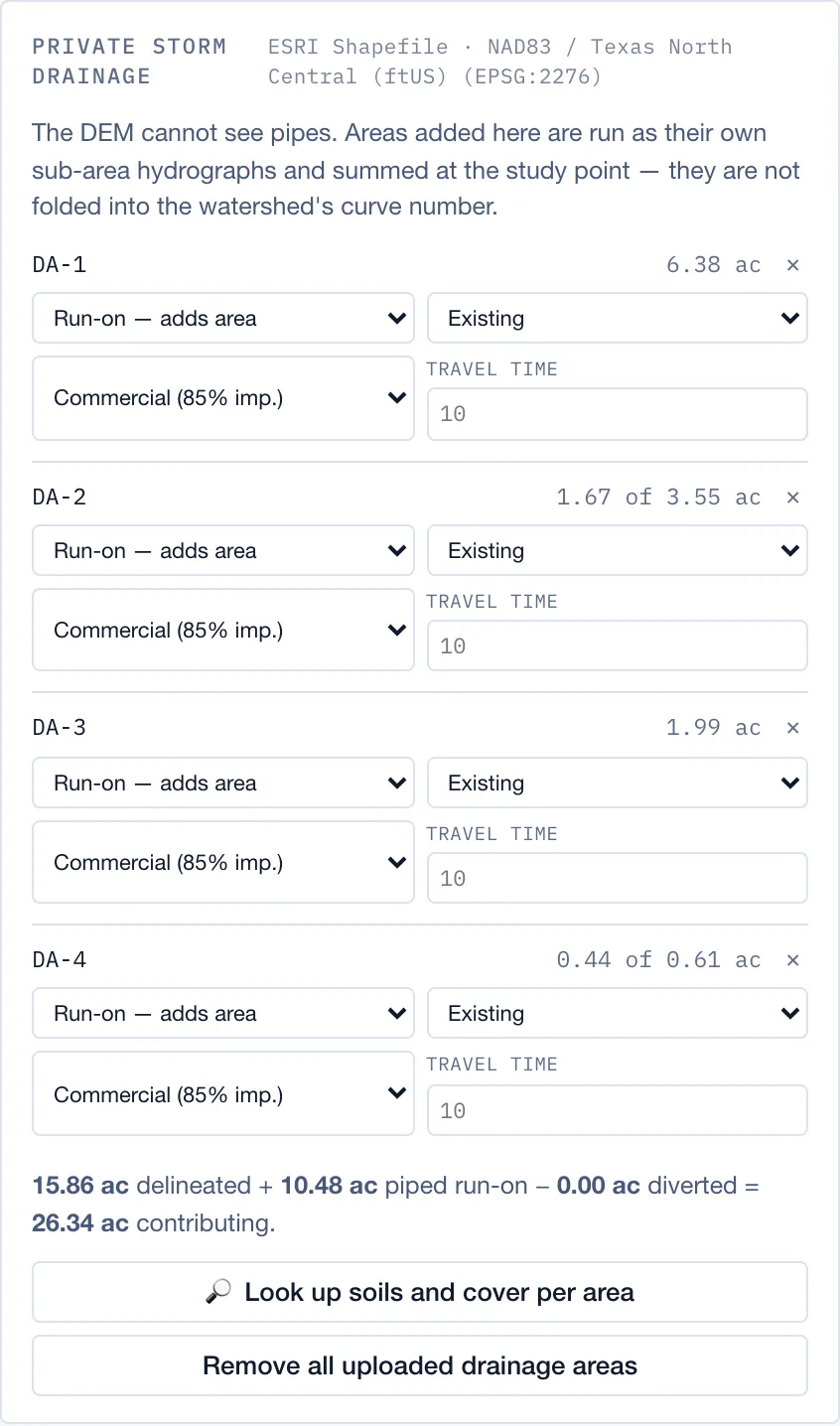
The total line at the bottom adds it up: 15.86 ac delineated + 10.48 ac piped run-on = 26.34 ac contributing.
Road crossings
For a road project: draw the alignment once and the app finds every place a stream crosses it, traces each crossing's watershed, and sizes a culvert at each using FHWA HDS-5.
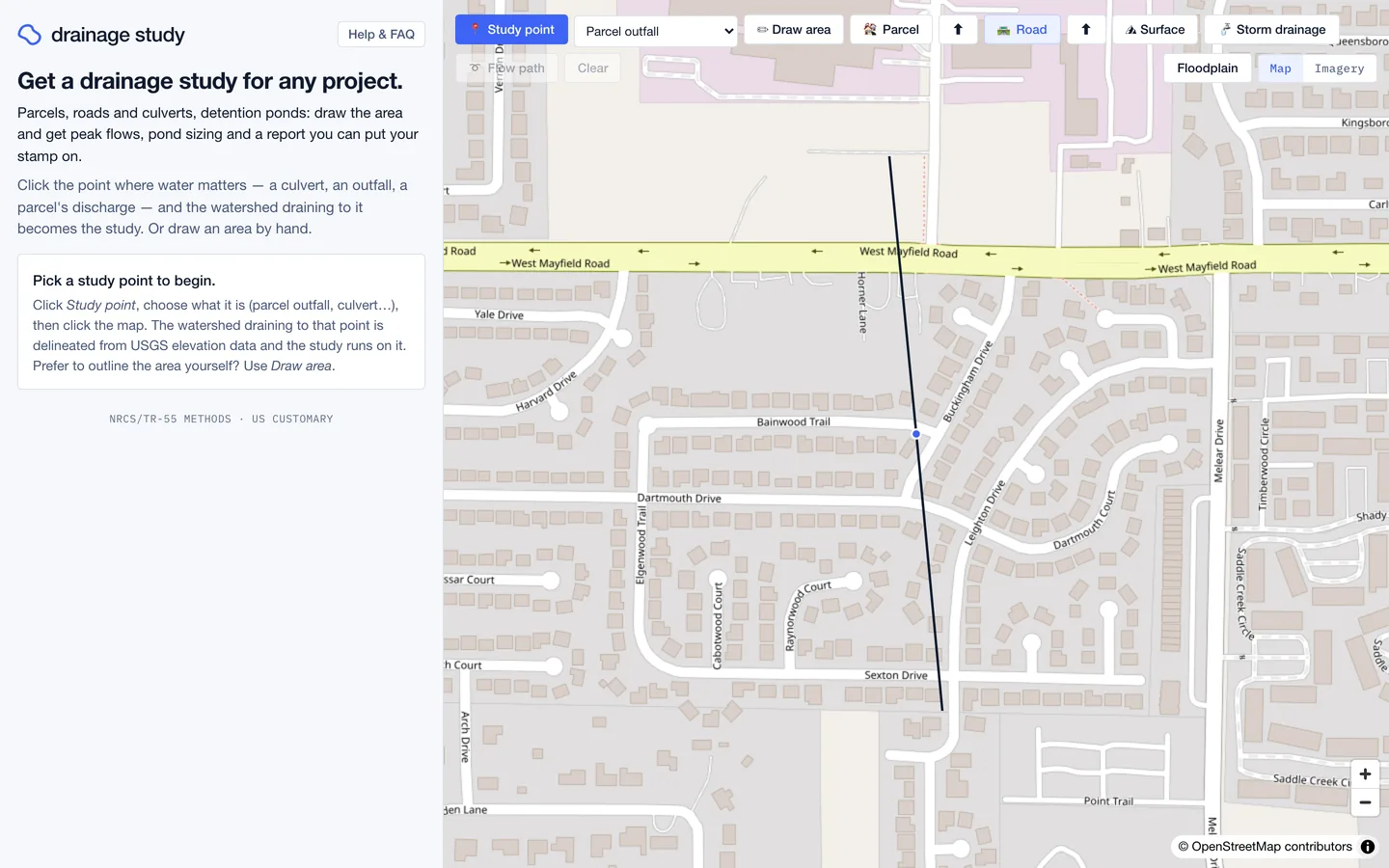
- Draw or upload the alignment. Press 🛣 Road,
click along the centerline and double-click to finish, or use
⬆ to upload a KML, KMZ or GeoJSON line.
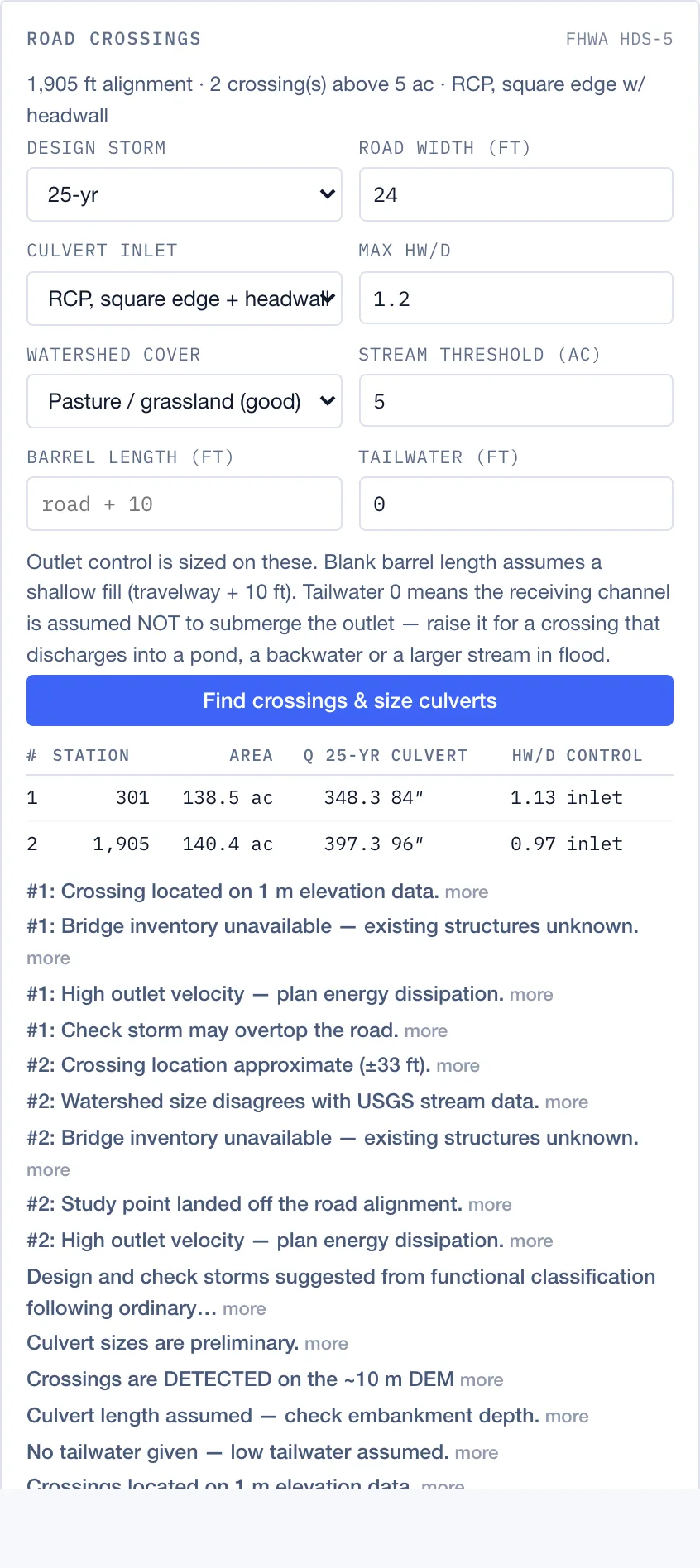
- Set the road data. Design storm, road width, culvert inlet type,
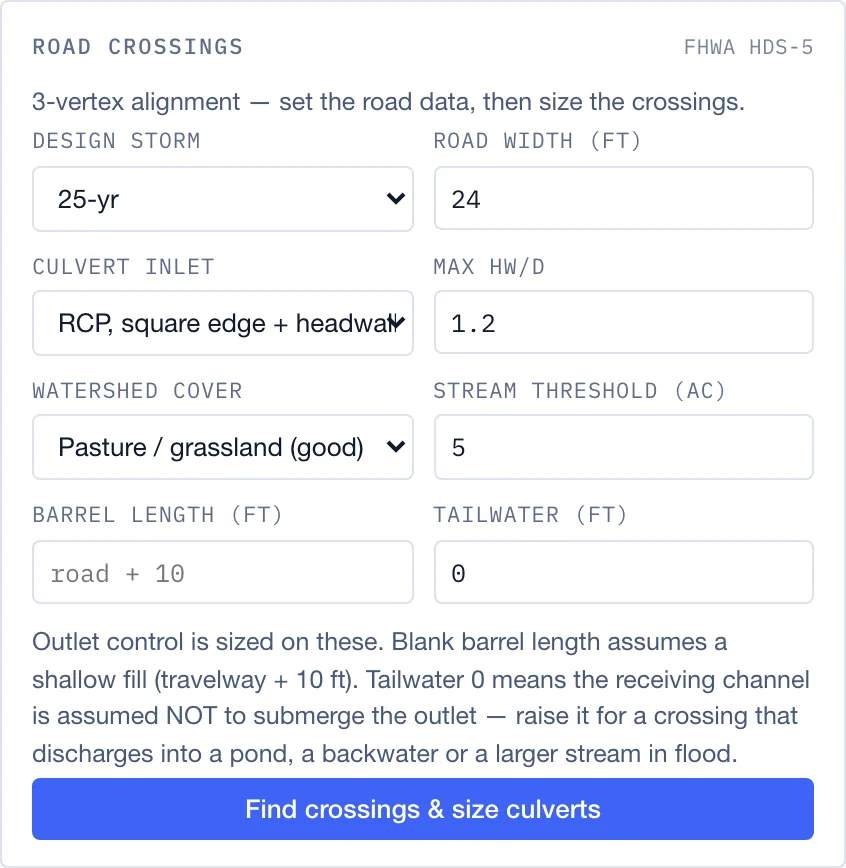
maximum headwater-to-depth ratio (HW/D), watershed cover, the
smallest drainage area that counts as a stream crossing (stream
threshold, in acres), barrel length and tailwater. A blank barrel length
assumes a shallow fill (road width + 10 ft). A tailwater of 0 assumes
nothing downstream backs water up into the outlet.
- Press Find crossings & size culverts.
Each crossing gets a row: station, drainage area, design flow, culvert
size, HW/D, and whether inlet or outlet control governs. Every crossing's
watershed is traced separately, so long alignments take a while.
- Click a crossing for its plan and section. Clicking a row in the table, or the numbered marker on the map, opens two drawings under the table. The plan shows the alignment with its station tick, the culvert axis crossing it at the measured skew with each barrel drawn to scale, the pour point, a flow arrow, north arrow and scale bar. The section runs along the culvert axis: the existing ground from the elevation model (1 m where it exists), the road fill above the barrel, the barrel at its diameter on the slope used for sizing with its inlet and outlet inverts, the design-storm headwater as a solid line and the check-storm headwater dashed, tailwater when you gave one, and the roadway elevation at the station, with the vertical exaggeration noted. A short table under the drawings lists the roadway elevation, channel invert, fill depth, skew, barrel inverts, headwater elevations and how far each sits below the roadway, plus the barrel length re-measured through the fill at 2:1 side slopes when the ground shows fill — that length is reported beside the one used for sizing, never swapped in for it. Each drawing has a Download SVG link. Both are marked PRELIMINARY: the ground line is the elevation model, so an existing pipe or headwall is not in it, and a road that is not built yet shows no fill at all.
Proposed surface (LandXML)
To see what your grading plan does to drainage, upload the proposed surface. The study runs on existing ground and on your proposed grade, and compares the two.
- Export the surface from Civil 3D as LandXML and upload it with
⛰ Surface. The app reads the TIN, finds its
coordinate system and units, and reports cut and fill against existing
ground.
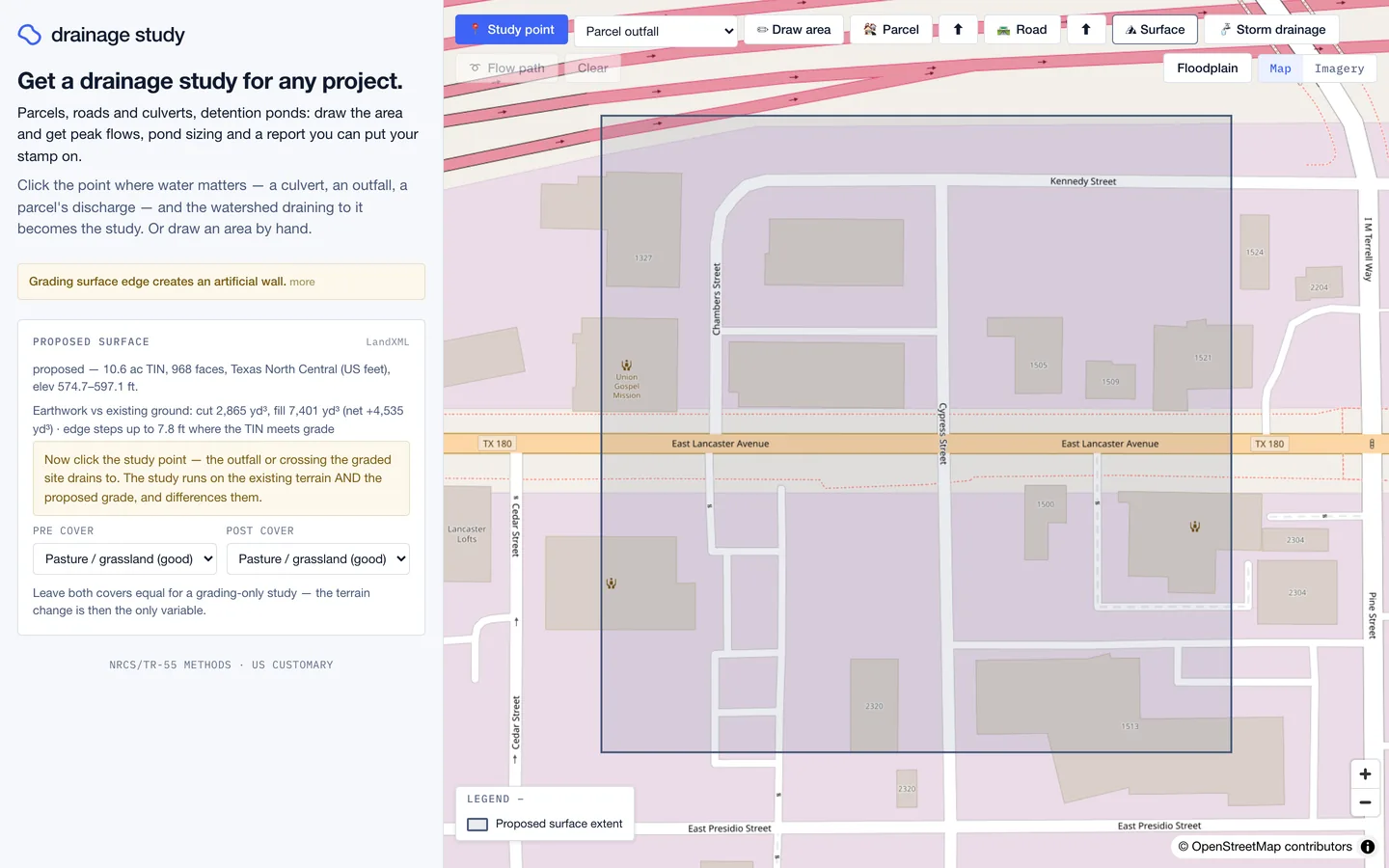
The yellow warning here says the edge of the surface makes an artificial wall: the TIN stops several feet above or below existing ground. Extend the surface until it ties into existing grade, or the traced watershed can bend around the wall. - Click the study point, the outfall or crossing the graded site drains to. The app traces the watershed twice, once on each terrain.
- Compare. The card shows area and peak flow on existing and proposed ground for every storm, with the change in peak and volume. Leave pre and post cover the same for a grading-only comparison, so the terrain change is the only variable. Tracing the watershed on two terrains takes longer than a normal study.
Frequently asked questions
Is this a sealed drainage study?
No. It is a preliminary study for planning and early design, prepared by automated analysis of public data. The report says so on every page. The engineer of record is responsible for checking the site conditions, criteria and calculations before relying on it, and for sealing the final study.
What methods does it use?
NRCS TR-55 / NEH-630: curve-number runoff, segmental time of concentration, the NRCS dimensionless unit hydrograph, and modified Puls pond routing. Culverts use FHWA HDS-5. Large watersheds can be split into sub-basins and routed with Muskingum. Units are US customary throughout.
Where does the data come from?
| Input | Source |
|---|---|
| Ground elevation, flow paths, Tc | USGS 3DEP: 1 m lidar where available, 10 m otherwise. The Site card says which was used. |
| Rainfall depths | NOAA Atlas 14 point precipitation frequency |
| Soils / hydrologic soil group | NRCS SSURGO (Soil Data Access) |
| Land cover | USGS NLCD |
| Floodplain | FEMA National Flood Hazard Layer |
| Streams | USGS NHD |
| Criteria | The selected jurisdiction's drainage manual, with citations |
Why does the area read slightly differently in different places?
The watershed is traced on an elevation grid, and the area is measured two ways: by counting grid cells, and by measuring the traced outline on the earth's surface. They differ by about 1–3%. In the Fort Worth example, the Site card shows 11.4 ac, the note under it 11.3 ac, and the report 11.35 ac. All three describe the same watershed.
My city isn't in the Jurisdiction list. What happens?
The study runs on generic TR-55 practice defaults, and the card says they are not an adopted standard. Peak flows are computed the same way; what changes is which storms are required, freeboard, side slopes and the other checks. Compare the Criteria findings against your local manual yourself.
A jurisdiction marked (unverified) has its criteria entered from the manual but not yet confirmed by a person against the adopted version. Its findings are reported, but treat them as provisional.
What happens if NOAA or USDA is down?
The study still runs. For Texas sites we keep our own copies of NOAA Atlas 14 rainfall and the USDA soil survey, and switch to them when the live services don't answer; the numbers are the same. If no soil data exists for the site at all (open water, an unsurveyed area), a red banner says which soil group was assumed, and a Soil group dropdown on the Soils card lets you set the real one. Studies run on assumed soils or typed-in rainfall don't use up your free study.
Outside Atlas 14 coverage, the app asks you to type the 2-, 10-, 25- and 100-year 24-hour depths. Every result and the report then say the rainfall was entered by you.
Can I change the numbers the app picked?
Yes. Nearly every input is editable: jurisdiction, rainfall distribution, drained soils, pre and post cover, every Tc segment, pond depth, and each uploaded drainage area. The study re-runs on change. To change the boundary itself, use ✏ Draw area.
How long does a study take?
A typical study point on a site of a few to a few dozen acres finishes in under half a minute. Large watersheds, design options (about 30 s), proposed surfaces (two traces) and long road alignments (one trace per crossing) take longer.
What file types can I upload?
| Button | Accepts |
|---|---|
| 🏘 Parcel ⬆ | KML, KMZ, GeoJSON (polygon) |
| 🛣 Road ⬆ | KML, KMZ, GeoJSON (line) |
| ⛰ Surface | LandXML (.xml, .landxml) |
| 🚰 Storm drainage | Shapefile (.zip with .shp/.dbf/.prj), GeoPackage, DXF, KML/KMZ, GeoJSON. DWG is not readable; export to DXF. |
What does the free study include?
One full study with every result shown on the map and in the panel. Downloading the report, and running more studies, needs a subscription. A study that fails doesn't use up your free study; it only counts once a study completes.
When something goes wrong
The watershed is tiny, or obviously the wrong shape
The click probably landed beside the channel instead of on it, or on the wrong one of two nearby channels. Switch to Imagery, zoom in, and click right on the outfall or culvert. Check that the point type in the dropdown is right. A Culvert / crossing point looks for a stream and sizes a preliminary culvert; a Parcel outfall doesn't.
How is the culvert on a crossing point sized?
The same way road crossings are: FHWA HDS-5 design headwater, the higher of inlet and outlet control, against a maximum HW/D (1.2 by default), on the post-development peak of the design storm (25-year by default, checked at the 100-year). The barrel slope is the Tc channel segment's slope; a blank barrel length assumes 40 ft. Tailwater is your call: free outfall is HDS-5's low-tailwater default, top of pipe drowns the outlet to the crown, and normal depth runs Manning's equation in a trapezoidal channel you describe by bottom width and side slope. The size is preliminary: road overtopping, minimum cover, scour and the real channel section are not checked, and a crossing that no set of round barrels up to 4 × 96 in can pass is reported as needing a bridge or box culvert.
It's been running for a long time
Big watersheds, long road alignments and proposed surfaces are the slow ones. After 45 seconds the panel says it's still working. If there's no answer after several minutes, a Retry button appears. Retrying picks up the study the server already finished and doesn't use up another study.
My upload was rejected
The message says why. Common causes: a shapefile zipped without its
.prj (the app can't tell where the drawing sits), a DWG, polylines
that aren't closed, or a KML with no shapes in it.
Something else
If an error shows a reference like (ref abc123), email it to info@drainagestudy.com with the study point coordinates from the Site card. That is enough for us to find exactly what happened.